Posts

Showing posts with the label Ubuntu

How to install from redis-5.0.8.tar.gz on linux (Ubuntu)?
Image
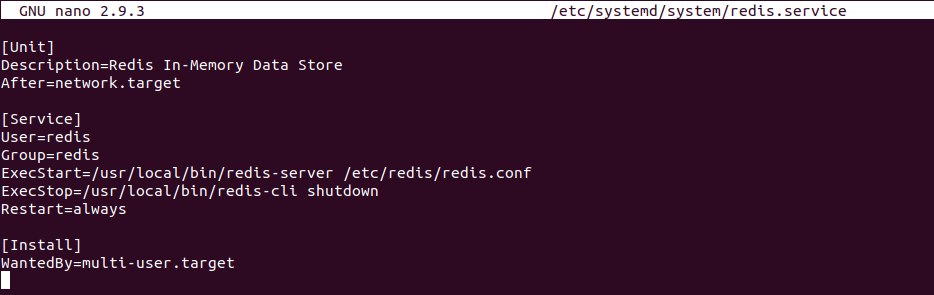
Redis data structure is light weight, in-memory and easy to use. This can be very useful, if you have multiple threads that need to share data. I have successfully used redis on raspibian OS(running on Raspberry Pi B+) and Ubuntu 18.04.4 LTS(on Laptop). I had code written in C. Using hiredis, I was able to interact with redis. Here are the steps that were followed to get redis-5.0.8 installed on Ubuntu:- 1)   Download the latest stable version of redis from https://redis.io/download . Extract the redis-5.0.8.tar.gz folder. Navigate inside the extracted folder named redis-5.0.8 . 2)   Open terminal window inside this folder. Run following in terminal $> sudo -s   #enter the password $> make   #this will take some time. May be a minute or two $> make install       $> nano redis.conf    #now the configuration file is opened to be edited for adjusting to your requirements This file has good explanation and comm...
SINGLE PACKET AUTHORIZATION (PORT KNOCKING) EXAMPLE SIMULATION IN MININET

Image
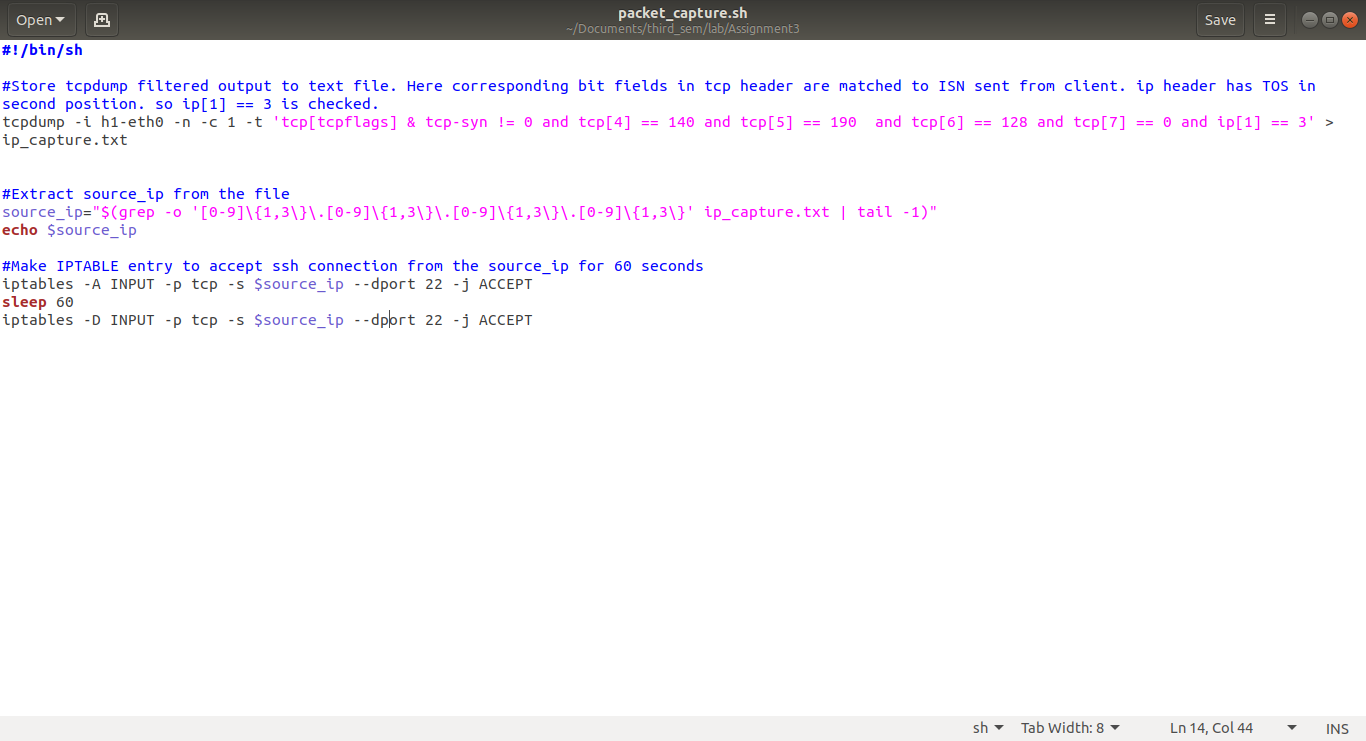
SPA is one method of port knocking used to dynamically modify firewall rules and allow access to specific port of a remote system. Details on this may be read from https://en.wikipedia.org/wiki/Port_knocking . We will be implementing a network with SPA authorization for SSH. Here the system is configured to allow access to SSH port (number 22) only after receiving an authorization packet from a remote system. The authorization packet used is TCP SYN packet with ISN(2361294848) and TOS(3). Upon receipt of this packet the access to SSH port is enabled for 60 seconds. SSH connection is allowed to the system for this duration window only. If remote system establises a connection using ssh within this duration, then the connection persists. Here, two methods to allow SPA are discussed. First one allows port opening for a particular IP address and second method uses the MAC address of requesting system to authenticate opening of port. The second method is useful when DHCP is configured to ...

Login to D-Link switch

D-Link switch by default (or on reboot/ reset) has following credentials. Following has been verified on model DGS 1210-10P:- 1) IP Address = 10.90.90.90/8 2) Username = admin 3) Password = admin Pressing the reset pin on switch after disconnecting from router resets it's IP to default value. This takes about 3 minutes. Connect the switch to laptop using ethernet cable. Inorder to connect and login to the switch you need to set the laptops IP within network range of switch. Set static IP on wired network for laptop to 10.90.90.10/8.  (In ubuntu go to Network > Wired > IPv4. Select Manual option and add following Address = 10.90.90.10 Netmask = 8 Click Apply. ) Now go to browser. Type 10.90.90.90 at url field. Prompt to login for switch appears. Else open terminal in ubuntu. Type $ sudo telnet 10.90.90.90 Prompt to login with username and password appears. Settings can be now customised refering to the switch manual.

Mirror android mobile screen on laptop

There are many situations that leads to such a requirement. If the internet connectivity at home is of less speed and you have access to a higher bandwidth wifi internet at the place of work. If you want to search and download favourite series on mobile phone and later watch the same on laptop at home. Direct approach ~~~~~~~~~~~~ Just mirror the mobile phone on laptop screen. The downloaded videos on mobile can be played and accessed from laptop after screen mirroring. This will give provision to control (play, pause, navigate etc.) the same from laptop. Tested platform ~~~~~~~~~~~~ Phone with android OS Laptop with ubuntu OS To do ~~~~ 1. Get SCRCPY(There are enough resources available in internet to help in installation of SCRCPY on windows/linux/mac OS). For ubuntu, type in terminal sudo apt-get install scrcpy 2.    After successful installation, connect android mobile phone using USB to laptop in FILE TRANSFER mode. Now the android ...